Making Your Content Accessible
Accessibility is a university-wide effort. Ensuring that content is accessible is not just an IT or Web responsibility—it’s a shared responsibility across all departments. Whether you are creating course materials, updating a webpage, sending out a newsletter, or designing a document, accessibility should always be a priority.
As the university moves toward ADA Website Compliance by April 24, 2027, it is imperative for Colleges, Departments, Offices, and Units take stock of their web and social media accounts.
Creating Accessible Webpages:
- Links on your site need to be descriptive:
Be sure all pages on the site use descriptive links. Avoid generic link text like “Click Here.” Instead, use descriptive phrases that convey the link’s destination, such as “Download the course syllabus.” - Images must have Alt Text:
Check for any images that are missing alt text on the site. You can use the Chrome extension Image Alt Text Viewer to see alt text over images. If you find images that are missing alt text, be sure to provide descriptive alt text for them - Text has proper contrast:
Most of the text on the site should have proper contrast. What we’ve seen on our site sometimes is text on top of images that are too similar in color. If you’re not sure if some text has the proper contrast, you can use the Chrome extension WCAG Color Contrast Checker to check all the contrast ratios on the page. - Check for PDFs that could be removed or turned into a web page:
Each PDF on the site has to be made accessible. Making PDFs accessible can be complex depending on the content. If you see PDFs that aren’t needed anymore, we need to remove it from the site. If the content in the PDF could be easily turned into a web page, we need to work on making a web page. The goal is to remove (delete if no longer needed), reimagine (rethink for a better experience, such as an html file), or remediate (to make the PDF available and ADA compliant).
The form to report any of these issues is now available on the homepage of the ADA Website at: muw.edu/ada. If you find images missing alt text, please provide alt text in your report, as this will greatly expedite the issue resolution. Additionally, you can assist in this process by editing your own links.
Creating Accessible Social Media Content
Social media is a critical component of disability inclusive communications. Here are some ways you can make your social media communications more accessible:
- Add Alt Text to all posts containing an image
- When posting, write full copy/captions. They should be written in Plain Language.
- Be sure to include image descriptions where applicable
- Include captions on all video content
- Avoid using strobing, flashing or “Slam” transitions in videos
- Use Camel/Pascal Case Hashtags
- Limit the use of emojis
- Color contrast for graphics. Certain color contrast ratios can result in the text of a graphic or image being difficult to read
Creating Accessible Video
- Caption all video. YouTube has very useful built-in captioning tools
Creating Accessible Audio
- All audio files must contain links to text transcripts
Beyond April 24, 2027
- PDFs and forms require sustained remediation capacity.
- Third-party tools (widgets, iframes, portals) vary in conformance; contract language and testing must stay tight.
- Decentralized content increases drift risk without continuous reinforcement and monitoring.
General Guidelines
Headings
Use proper H1 and H2 Headings and structure in documents. It establishes clear hierarchical structure and it aids screen readers in navigating your document.
- Heading 1 is the main content heading. There is generally one Heading 1 per document.
- Heading 2 is a major section heading.
- Heading 3 is a sub-section of the Heading 2, and so on.
You should not skip heading levels, such as using a Heading 4 after a Heading 2 with no Heading 3 between the two.
Alternative Text
Add alternative text (alt text) to images (photos, charts, graphs, paintings, maps, etc.)
- Provide descriptive alt text for all images. This ensures that users relying on screen readers can understand the content.
- Keep descriptions concise and informative, conveying the purpose of the visual element. For complex images like charts, you will often need to provide succinct alt text plus a table or lengthier text alternative near the image.
Links
Create descriptive links. Avoid generic link text like “Click Here.” Instead, use descriptive phrases that convey the link’s destination, such as “Download the course syllabus.”
Good example:
Read our MUW Strategic Plan
Bad example:
Click here to learn more
Follow these principles to create accessible links:
- Use descriptive link text that does not rely on context from the surrounding text.
- Keep the amount of text in the link to a minimum.
- Use underlined text with a color that stands out from the surrounding text.
Fonts & Colors
Choosing accessible fonts and colors.
- Use sans-serif fonts (e.g., Arial, Calibri) for better readability. San-serif means without serif or without decorative strokes.
- Use colors that have sufficient contrast with its background. Black text on a white background has a contrast ratio of 21:1. While your text must have a minimum contrast ratio of 4.5:1.
You can use a tool like the WebAIM Contrast Checker to see what contrast ratio your text has. You’re free to use colors, but keep in mind you shouldn’t use color alone to present meaningful content or instructions.
Testing Accessibility
Testing content for accessibility requires both manual and automated tools. Automated tools catch 30-50% of issues, making manual testing essential. Best practices combine automated and manual testing. Below are instructions on how to use the automated tools that are built into many applications.
For testing web pages you can use the WAVE Browser Extension.
PDFs
Resources:
WebAIM PDF Accessibility
How-To:
Acrobat Pro has access to a accessibility checker as well as tools to automatically tag a PDF in order for it to be read by a screen reader.
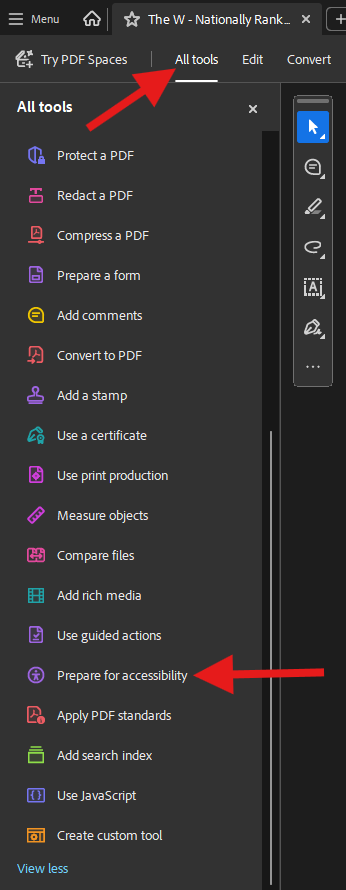
- To find these tools click “All tools” at the top left of Acrobat.
- Click “View more” in the list of tools, and scroll down to “Prepare for accessibility.”
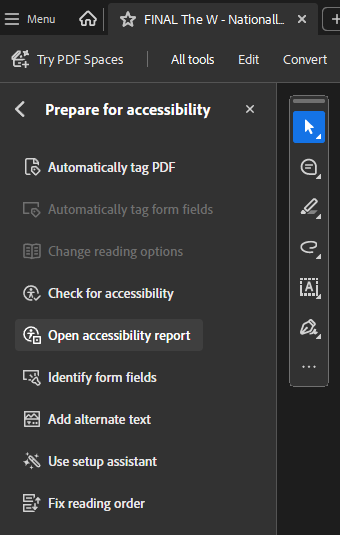
- Once there you’ll find an option to “Automatically tag PDF” which will attempt to tag your PDF.
- You’ll still need to add alt text to any images, and check the reading order it assigned to the tags by using the “Add alternate text” and “Fix reading order” tool.
- Finally you can use the “Check for accessibility” tool to see if your PDF passes all the checks.